In the last few months I’ve been testing other platforms for achieving workday productivity. One of those platforms I’ve tested is Gmail. I’d used it in the past, not really liked it, but thought I should look at it again. It’s evolved greatly since my first use, so I decided to see, first-hand, how its newer versions compare with the Microsoft Outlook ecosystem of products.
I’ll write much more about in the coming months, but my initial conclusion is that Gmail’s webmail, in its recent incarnations, has come a long way and offers productivity opportunities comparable to Outlook.
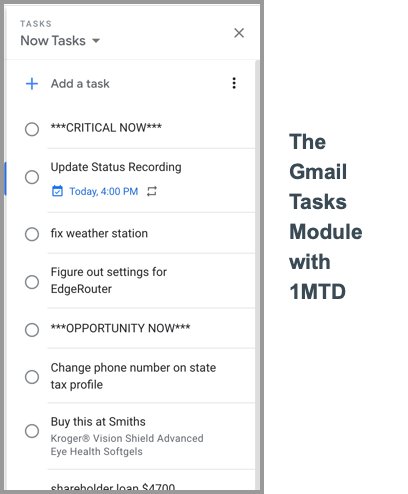
Gmail Tasks and 1MTD
This is especially true of the new Tasks module that Google released a number of months ago (shown above).
Windows Desktop Outlook was recently expanded with the ability to add more Quick Action buttons to the Inbox. I’ve created a new free video (within my Outlook Inbox Ninja Course) that shows you how to do this. Go to this link and scroll down to free video lesson 8.6, you don’t need to own the course.
What are Quick Action Buttons?
Quick Action buttons are those buttons at the right edge of each email item in the Inbox that take action on the email.
By default, Windows Outlook comes with only two buttons: Flag and Delete (the trashcan icon).
You see these when you hover over the right end of a message. But with recent Office 365 subscription updates to Windows Outlook, you can now add up to two more.
Watch the Free Video
To see how, go to this link and scroll down to free video lesson 8.6
Microsoft recently announced that as of Fall 2020, mainstream support for Office 2016 for Mac will come to an end. Upgrades are recommended prior to the support end date.
Microsoft states that “Although you will still be able to use Office 2016 for Mac, you will no longer receive security updates and bug fixes after October 13, 2020. Upgrade to a newer version of Office so you can stay up to date with all the latest features, patches, and security updates.”
I am sort of surprised how quickly the 2016 Mac version is being retired. After all, on the Windows side Outlook 2010 has been supported all the way to this year. My guess is that’s because there are far more corporate installs of Outlook 2010.
Here is what Microsoft Suggests to Replace Office 2016 for Mac (copied from their website):
Recommended: Upgrading to Office 365, the subscription version of Office that comes with Word, Excel, PowerPoint, and other apps, depending on the plan you choose. With Office 365, you can get apps on your computer as well as premium functionality in the web and mobile apps and receive regular feature updates.
Upgrading to Office 2019 for Mac. Office 2019 for Mac is a one-time purchase (not a subscription) for installation on one Mac only. Office 2019 for Mac does not receive feature updates.
New Version of Outlook for Mac Coming
I reported earlier that a new version of Outlook for Mac is coming soon to Office 365 subscribers, so that’s another reason to use the first choice above. Office Insiders may be able to test it out now, but I have not seen an official full release date. See this article I published earlier:
The resolution season is upon us. So, let’s resolve to get
tasks and email under control.
It’s good to tackle both tasks and email together since, in
many businesses, up to 90% of new tasks arrive by email.
It Simply Takes 4 Steps to Move this Forward
1. Commitment: make a commitment to reach that control. Without that, the next 3 steps won’t happen.
2. Technology: make a small commitment in new technology—you might need a new task management app or email management tool. But an app is useless without the next point.
3. Methodology: this is key, you must understand that having the right task and email methodology in place is what makes this work. I am biased of course, but I’ve never found a methodology that works better than the MYN, 1MTD, and Outlook Ninja methodologies.
4. A Little Training: the above steps can’t be achieved by simply loading a new app on your smartphone. Too many of us try that easy way out but fail. Rather, it takes at least a little training to put the methodology in place, and to learn how to apply that methodology to technology (we show which apps and software to use). Of course, that’s my specialty: self-study video training to do just that.
See my store page for a list of those video courses. They are easy to use and will get you going quickly.
And see this short article that explains how my three methodologies are different, and which you should use.
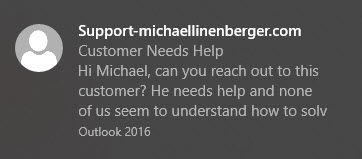
In nearly every live class and video course that I teach, I advise all participants to limit Outlook incoming e-mail notifications.
By e-mail notifications, you know what I mean: in Windows 10 it’s the small black rectangular box, shown above, that pops into the lower right corner of your computer screen every time an e-mail comes in.
Officially it’s called a desktop alert, but no matter what you call it, it’s bad for your productivity—so turn that thing off. And then only leave it on for very important contacts.
Why it’s So Bad for You
Why turn it off? Well, the trouble with that box is it displays just enough of the message to entice you to read it, which then wrenches your attention completely away from your current high priority work—it’s an interruption.
I am amazed how many of my clients still use Outlook 2010. Well, it’s time to start planning for an upgrade, because Microsoft support for that Outlook version, and for all Office 2010 products, will end in 10 months. See more information at this link:
What does that mean? Bug fixes, call-in support, and most importantly security upgrades will end on October 13, 2020. It will be risky to linger on that version any longer. And really, isn’t ten years long enough?
Here is a useful guide: I’ve got three main productivity systems. But how are they different?
Well first, here they are in the order the were created:
MYN (Master Your Now)— an advanced task or to-do list management system.
1MTD (The One Minute To-Do List) —a starter task or to-do list management system that works with MYN.
Outlook Inbox Ninja—an Outlook email Inbox management system that can be combined with the two above.
Are Any of these Systems for You?
If you are new to my newsletters, you may not fully understand
what these are and how they are different. You may wonder which, if any of
them, you should use. I’d like to answer that here.
First of all, my target audience for all three systems is
this: the overworked, overwhelmed, or over-extended office worker or
manager. If that sounds like you, then one of these will work for you. In these
systems, I am helping people who have too many tasks and/or too many
communications, including an overloaded email Inbox.
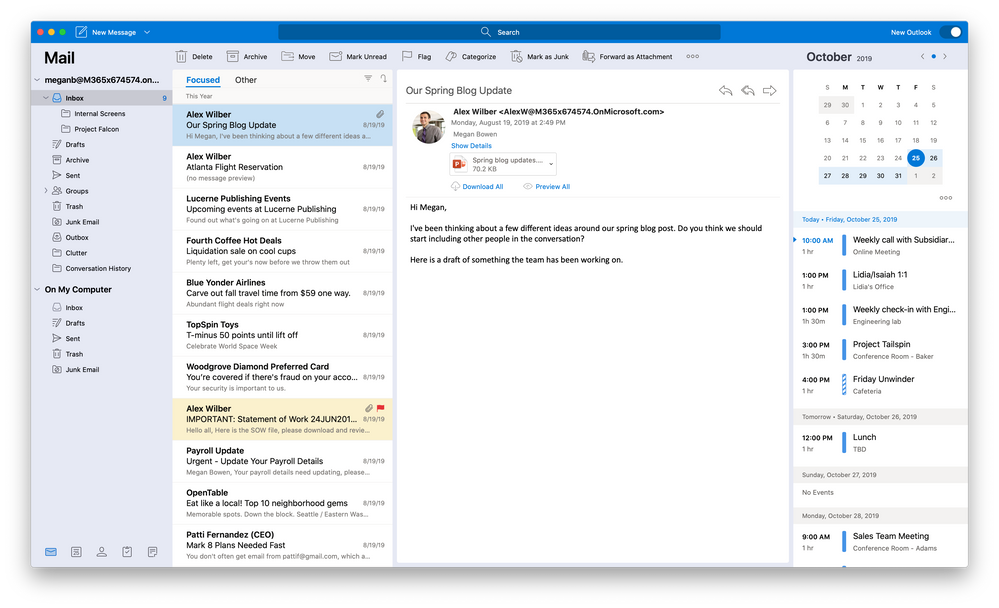
For those of you who use Outlook for Mac Desktop and have Office 365 subscriptions, a new version is coming soon.
The new version moves the Search box up to the top and adds more search filters, like what is happening in Windows desktop Outlook.
My Day is now a pane on the right, sort of like the To-Do Bar in Windows.
And apparently it’s got some major underlying architecture changes in that “it is powered by the Microsoft Cloud and connects using Microsoft sync technology.” The article linked below says it is “Built on the same Microsoft sync technology utilized by Outlook for iOS and Android and Windows Mail” and as a result “the new Outlook for Mac is faster and more reliable.”
Lot’s of other changes described in article below.
Microsoft just made this very good announcement a few days ago (November 4):
“In 2018, we announced that Microsoft would end mainstream support for OneNote 2016 in October 2020. That is no longer the case. Although OneNote 2016 is not available on the Office install pages today, it is coming back.”
“Beginning March 10th, 2020, new installations of Office suite products will include OneNote 2016 by default.”
“In addition, config.office.com, SCCM, and Intune will display OneNote 2016 as being included with Office by default.”
From: MC194800, Plan For Change, Published date: Nov 4, 2019
This announcement is important because OneNote 2016 is the only version of OneNote fully integrated with desktop Outlook. It’s also got a ton of important other features not present in the newer Windows Store (UWP) versions of OneNote.
I wrote about those concerns in this article from a year ago.
We’ve just added another free video to the Outlook Inbox Ninja Video Course. It’s Video 3.8 Outlook’s New Search Box. It gives details of the significant changes Microsoft has made to the Outlook Search functionality in its latest Office 365 subscription monthly release.
To see that video, go here, and then scroll down to Video 3.8 where you can watch it free.